
In this tutorial, we will install the WireGuard client on iOS (iPhone, for example). Before following this tutorial, you should have downloaded your Wireguard config from the PremierVPN client area dashboard under "Attached Files" to your device.
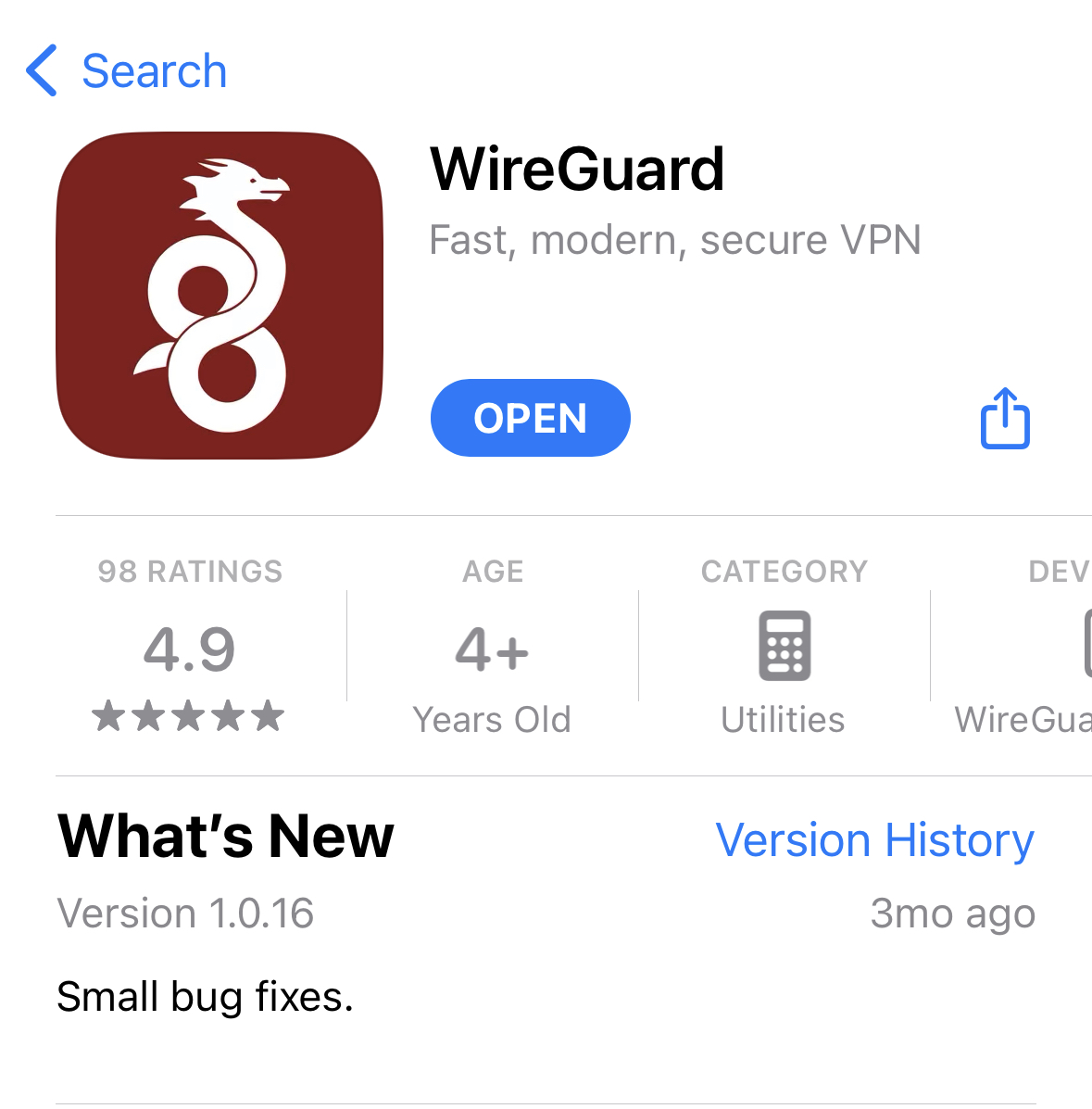
- Go to the App Store, search for "Wireguard", and download the WireGuard app. If installed, it will show "Open"; if not, it will show "Get" Tap Get to install it.
- Visit the PremierVPN client area dashboard and download your WireGuard config file under the Attached Files to your device.

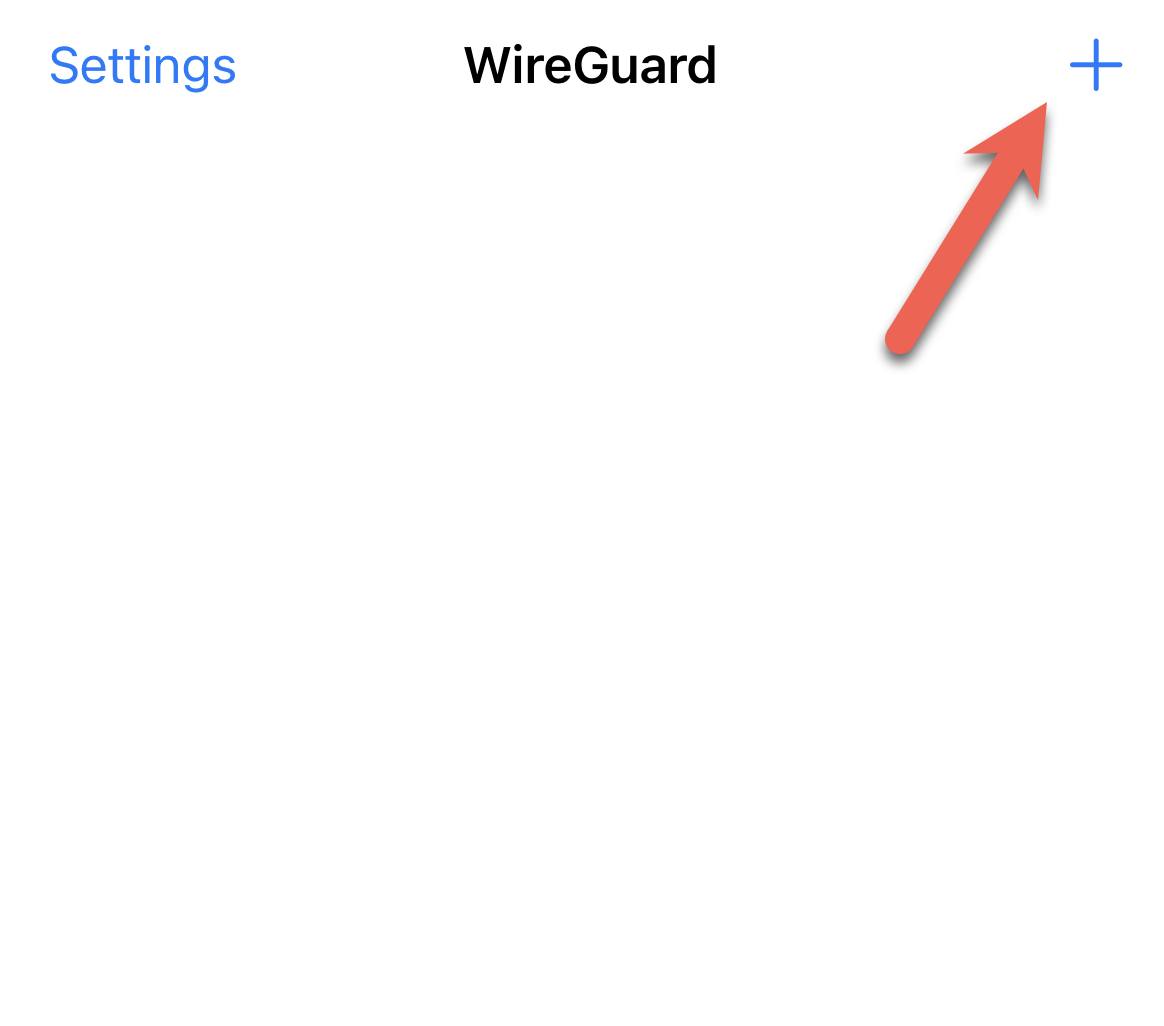
- Open the WireGuard app and tap on the "+" button in the top right corner of the screen.
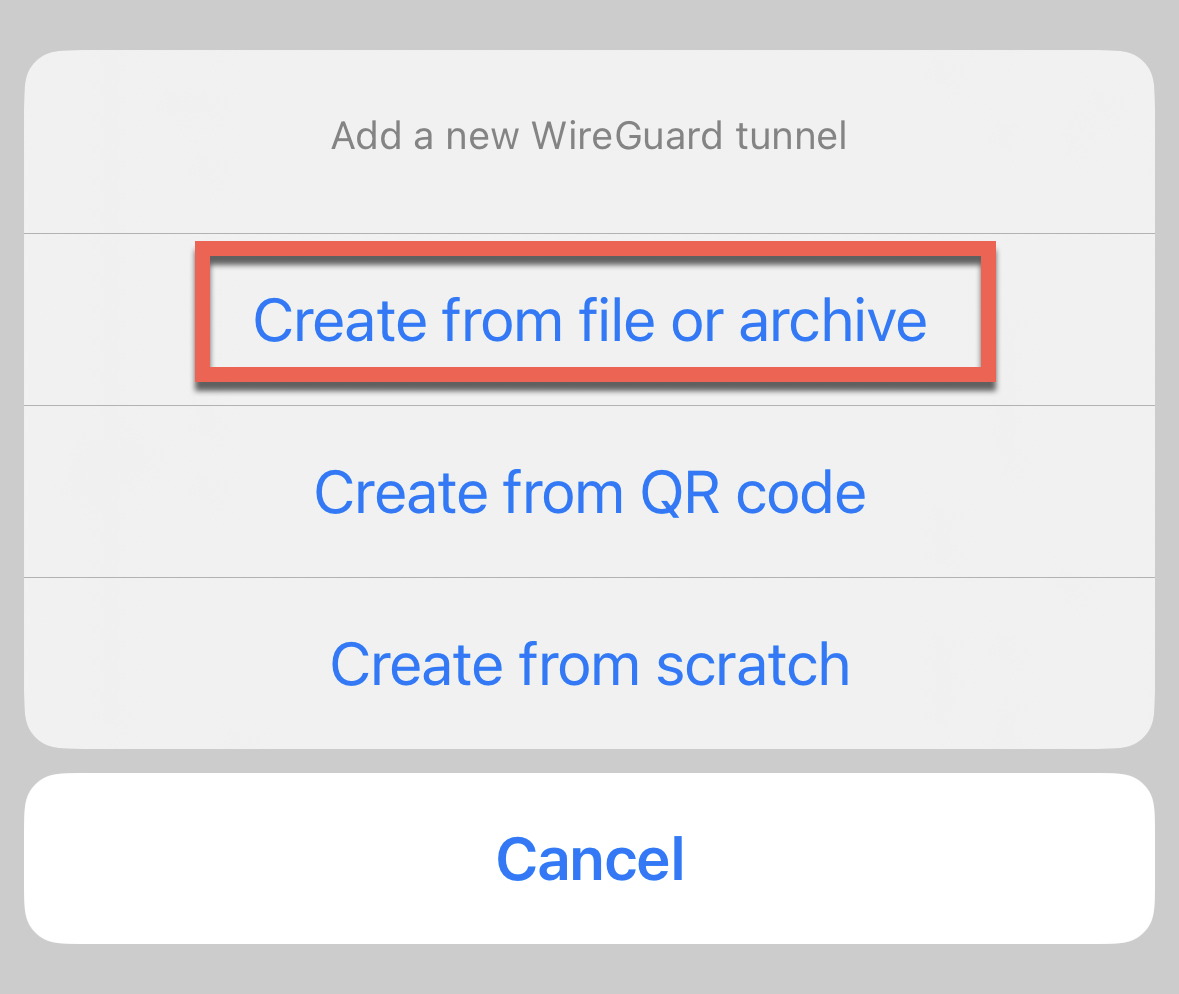
- Select "Create from file or archive".
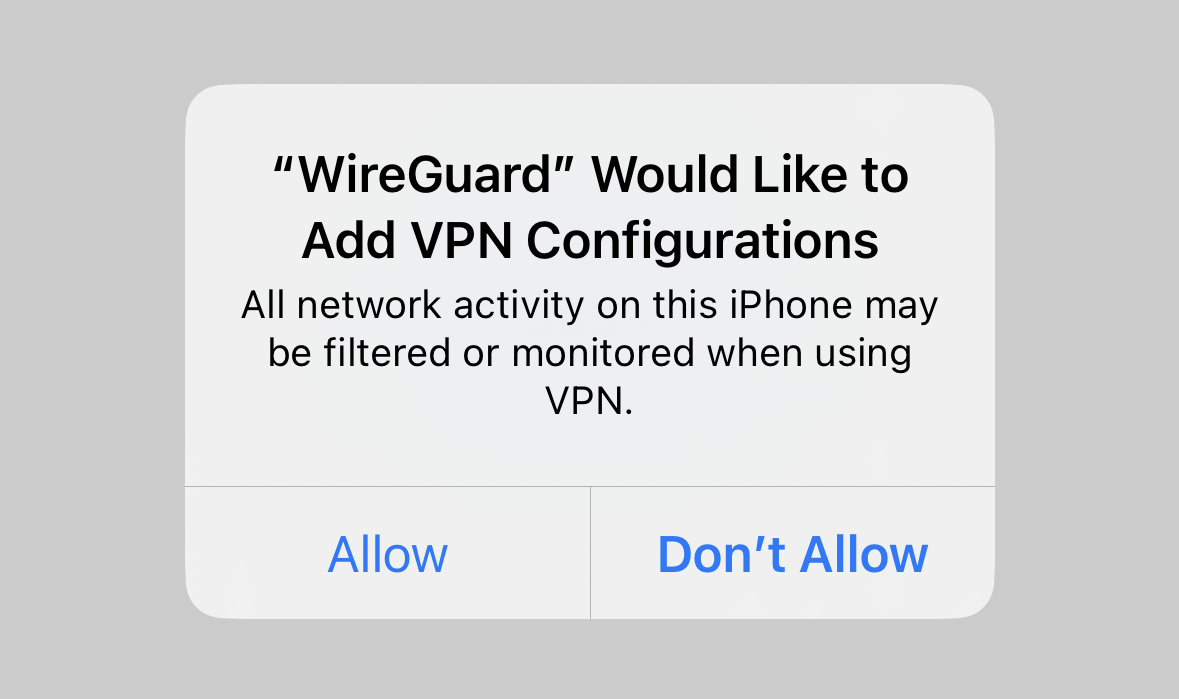
- Select the WireGuard config file you want to import; it will prompt you to Allow this action; click Allow.
- WireGuard will import the config file and create a new tunnel.
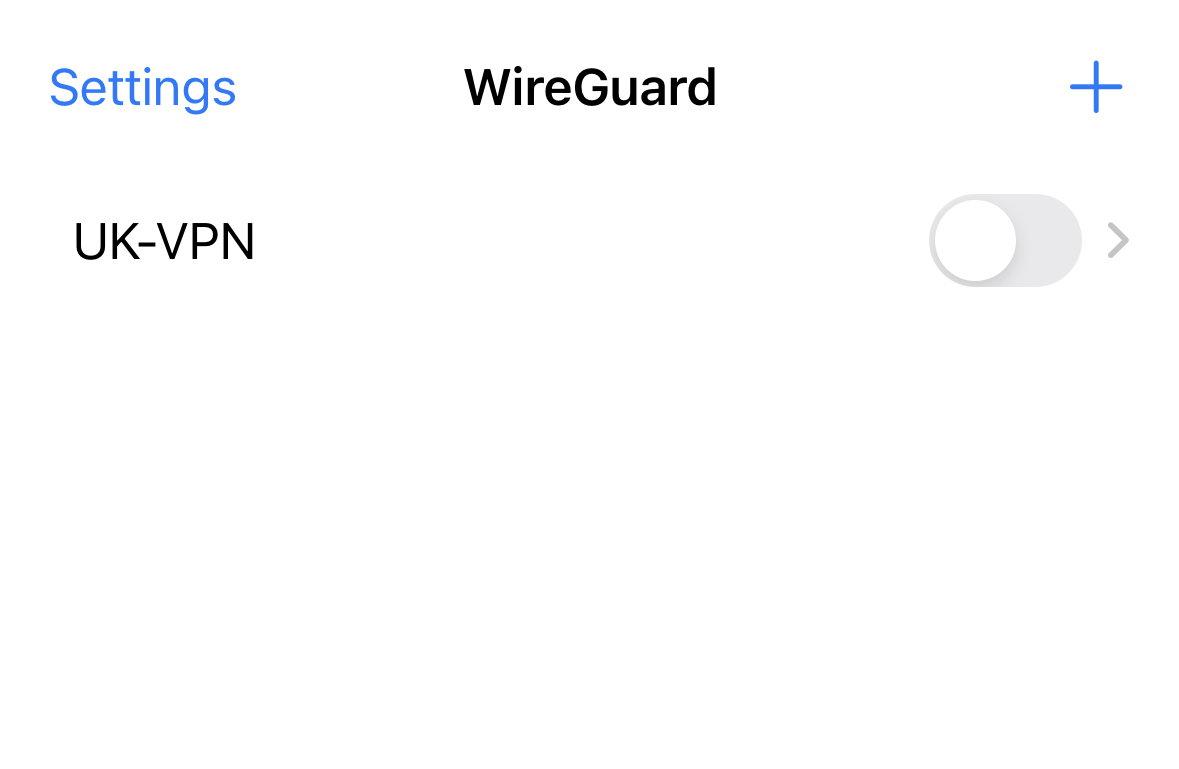
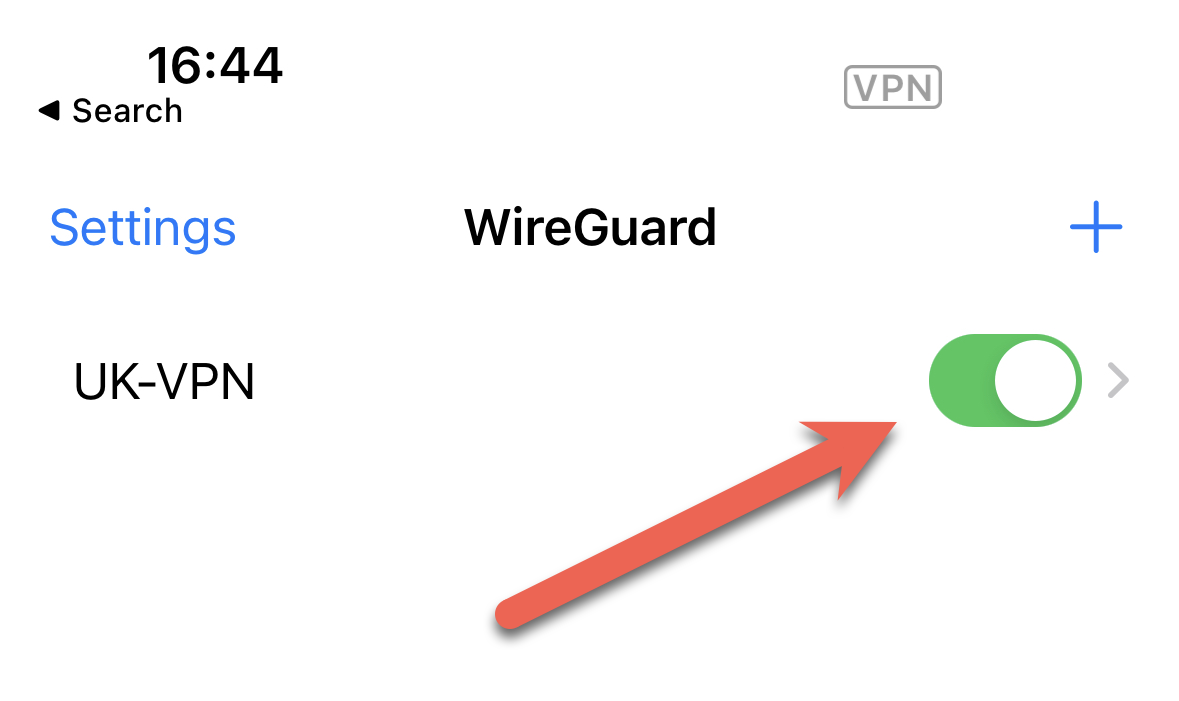
- To connect to the tunnel, tap on the switch next to the tunnel's name.
Here are some additional things to keep in mind when using WireGuard:
- WireGuard is a lightweight VPN protocol that is very fast and secure.
- WireGuard is open-source, so it is free to use.
- WireGuard is available for Windows, macOS, Linux, Android, and iOS.
Once connected, visit ipextra.net and check your IP has changed.
If you have any issues at all, please feel free to open a support ticket via our support desk.